For years, Microsoft was the quiet inbox. Google and Yahoo published their bulk sender rules in late 2023 with a hard February 2024 deadline, every deliverability blog wrote the same checklist, and senders scrambled to publish DMARC records. Outlook.com, Hotmail, Live, and MSN sat on the sidelines, filtering aggressively but publishing very little about what they expected.
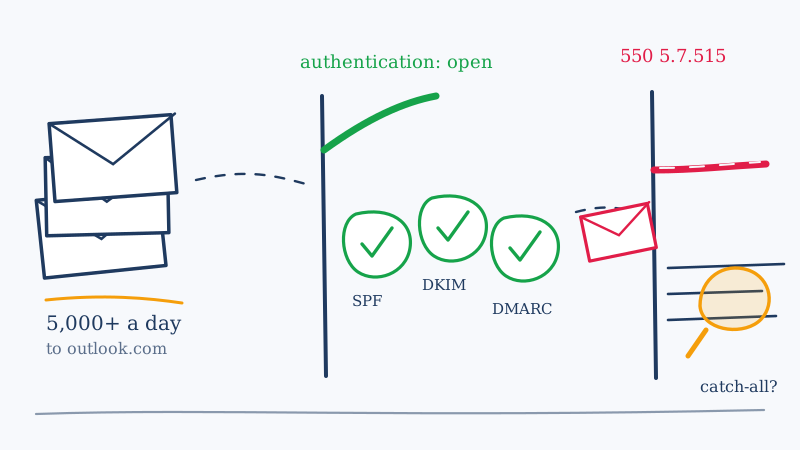
That changed in 2025. Microsoft announced requirements for high-volume senders to its consumer mail domains, and enforcement began on May 5, 2025. The requirements themselves are not surprising, because they are nearly the same three records Google and Yahoo asked for. What surprises teams is the failure mode. Outlook does not just quietly file non-compliant mail into Junk indefinitely. Mail that fails the authentication bar can be refused at the SMTP transaction with a 550 5.7.515 rejection, which means the message never reaches a folder at all.
This guide covers what Microsoft actually requires, how to diagnose the rejection codes you will see, and the part most checklists skip: what happens to your Outlook delivery once you are fully compliant and still landing in Junk.
What Microsoft Requires, Precisely
The requirements apply to domains sending more than 5,000 messages per day to Microsoft’s consumer mailbox domains: outlook.com, hotmail.com, live.com, and msn.com. Two details in that sentence trip people up.
First, the threshold is measured per sending domain, not per account or per platform. If you run three brands off one root domain through three different sending tools, Microsoft is counting the combined traffic from that domain. Teams who assume they are under the line because no single tool sends 5,000 a day are frequently over it.
Second, the threshold applies to consumer Outlook addresses only. Mail to a company that happens to run Microsoft 365 on its own domain (the overwhelming majority of B2B recipients) is not what the 5,000 count measures. That distinction matters for cold outreach teams, whose lists are mostly corporate Microsoft 365 tenants rather than hotmail.com addresses. You can be well under the high-volume threshold and still have a serious Microsoft delivery problem, which is the whole point of the second half of this article.
For senders over the line, three things must be true:
SPF must pass. Your DNS must publish an SPF record that authorizes the IPs or hosts actually sending on your behalf. The common failure here is an SPF record that was accurate two tools ago, or one that has quietly exceeded the ten DNS lookup limit after a few include: statements got stacked.
DKIM must pass. Your messages must carry a valid cryptographic signature that receivers can verify against a public key published in your DNS. Many platforms sign by default with their own domain, which authenticates the platform rather than you. That is not the same thing, and Microsoft is checking the domain in your From header.
DMARC must be published and must align. You need a DMARC record at _dmarc.yourdomain.com with a policy of at least p=none, and at least one of SPF or DKIM must align with the domain in your From header. Alignment is where most “but I have all three records” tickets end up. A passing SPF check on a platform’s bounce domain does not align with your From domain, so DMARC fails even though SPF technically passed. If the difference between p=none, p=quarantine, and p=reject is still fuzzy, our walkthrough of the three DMARC policy modes covers what each one actually instructs a receiver to do.
Microsoft also states a set of strong recommendations alongside the hard requirements: use a valid, functional reply address, include clear and working unsubscribe handling, and keep your list clean so that complaint and bounce rates stay low. Treat those as requirements with a delayed fuse. They are not what triggers the SMTP rejection, but they are exactly what determines whether your compliant mail reaches an inbox or a Junk folder.
Reading a 550 5.7.515 Rejection
If you are over the threshold and failing the bar, the bounce you will see looks like this:
550 5.7.515 Access denied, sending domain does not meet the required authentication level
The useful thing about this code is that it is unambiguous. It is not a reputation block, not a throttle, and not a content filter. It is an authentication verdict, and it means one of four things:
- SPF failed. The sending IP is not covered by your SPF record, or the record does not resolve (syntax error, too many lookups, a stale
include:pointing at a dead host). - DKIM failed. Your platform is not signing, is signing with the wrong selector, or the public key in DNS does not match the key being used to sign.
- DMARC is missing. There is no record at
_dmarc.yourdomain.com, or the record is malformed and unparseable. - Nothing aligns. SPF and DKIM both pass on their own, but neither of the domains they authenticate matches the domain in your From header, so DMARC evaluates as a fail.
Diagnose it in that order, because the fix for each is different and the fourth case is the one that looks like the first three are fine. The fastest way to find alignment failures at scale is to read your own DMARC aggregate reports rather than guessing, and the XML those reports arrive in is more readable than it first appears. We walked through how to parse them in our guide to reading DMARC rua reports.
One warning worth internalizing: a 5.7.515 rejection is not necessarily permanent damage, but a sustained stream of them is. You are generating hard rejections at volume against a provider that tracks sending domains over time. Fix the records before you resume sending, not while you keep sending.
Why Compliance Is the Floor and Not the Ceiling
Here is the pattern that keeps repeating in deliverability tickets. A team publishes SPF, enables DKIM, adds a DMARC record, confirms alignment with a test send, watches the 5.7.515 bounces disappear, and declares the Outlook problem solved. Three weeks later open rates from Microsoft addresses are still a third of what Gmail produces, replies from Outlook recipients have not recovered, and nobody can explain why.
The explanation is that authentication answers a single question: are you who you claim to be? It says nothing about whether recipients want your mail. Once Microsoft can confirm your identity, it starts evaluating your behavior against that identity, and the inputs to that evaluation are almost entirely list quality:
- Bounce rate. A high proportion of invalid recipients is one of the strongest signals that a list was bought, scraped, or left to decay. Microsoft does not need to know how you built the list to draw the conclusion.
- Complaint rate. People marking your mail as Junk is the most direct negative signal available, and consumer Outlook users reach for that button readily.
- Spam trap hits. Microsoft operates its own trap network across its consumer domains. One hit against a recycled trap can affect filtering for an entire sending domain.
- Engagement distribution. Sending mostly to addresses that never open anything looks structurally different from sending to a list that reads you, and the filters model that difference.
Every one of those is a list hygiene problem wearing a deliverability costume. Authentication is a one-time DNS project. List quality is an ongoing operational discipline, and it is the part that determines your Microsoft placement for the rest of the year. If your domain reputation is already damaged from a previous bad send, publishing records will not reverse it on its own, and our sender reputation recovery plan walks through what actually does.
The Microsoft-Specific Blind Spot: Catch-All Tenants
This is where Microsoft delivery diverges from Gmail delivery in a way that most generic bulk sender checklists never address.
A very large share of corporate Microsoft 365 tenants are configured to accept mail for any address at the domain. The reasons are mundane: a catch-all rule was enabled during a migration, a shared mailbox was set up to absorb typos, or the tenant was configured years ago by an admin who has since left. The effect on validation is significant. When a standard SMTP verification tool probes [email protected], the tenant answers yes to every recipient it is asked about, whether or not Jane exists.
So the verification tool cannot resolve the address. It returns Risky, Accept-All, or Catch-All, and now you have a decision to make with no information. Both of the obvious choices are expensive:
- Delete the segment. On a B2B list this can mean discarding 20 to 40 percent of your contacts, including real buyers at real companies who would have replied.
- Send to it anyway. You are now sending blind into a pool that contains both valid mailboxes and invalid ones, and the invalid ones generate exactly the bounce pattern that Microsoft filtering penalizes most.
Teams that pick the second option are usually the ones who end up confused about Outlook placement after they finish their authentication work. They did the DNS correctly, then kept feeding Microsoft a list with an unresolved catch-all segment in it, and the bounces kept telling Microsoft the list was not maintained.
This is the specific gap Scrubby was built to close. Rather than accepting the catch-all answer as final, Scrubby validates those unresolved addresses at the inbox level over a 48 to 72 hour window and returns a definitive valid or invalid verdict, which recovers a large portion of the segment most tools tell you to throw away. For a list that is heavily weighted toward Microsoft 365 tenants, deep verification is the step that converts an unusable risky segment into either safe sends or confident removals. If you want the mechanics of why these domains behave the way they do, our guide to catch-all emails and the walkthrough of verifying Office 365 catch-all addresses go deeper than this section can.
A Workflow That Holds Up
Putting the two halves together, here is the order of operations that actually resolves Microsoft delivery problems rather than just clearing the rejection code.
1. Audit your real sending volume per domain. Add up every tool sending from your root domain and its subdomains, and count only the traffic to consumer Microsoft domains. Now you know whether the hard requirements apply to you today or whether you are one campaign away from them applying.
2. Fix SPF, DKIM, and DMARC in that order, then verify alignment. Do not stop at “the records exist.” Send a test to a Microsoft address and read the Authentication-Results header to confirm that SPF or DKIM aligns with your From domain. Alignment is the step that silently fails.
3. Start DMARC at p=none and collect reports before tightening. A policy of p=none satisfies the Microsoft requirement while you discover which legitimate senders you forgot about. Moving to p=quarantine before you have read a few weeks of aggregate reports is how teams accidentally quarantine their own invoices.
4. Clean the list before the next bulk send, not after. Run the full list through standard verification to remove the obvious invalids and syntax failures, and route the risky and catch-all segment to inbox-level validation instead of guessing on it. Quick verification handles the first pass economically, and the unresolved remainder is what justifies the deeper check.
5. Clean the system of record, not just the export. The reason lists need re-cleaning every quarter is usually that the CRM is the source of the rot and nobody fixes it there. CRM cleaning addresses the upstream copy so your next export does not reintroduce the same bad addresses, and the available integrations let validation run as part of the workflow rather than as a monthly manual chore.
6. Monitor Microsoft placement separately from Gmail placement. Microsoft publishes Smart Network Data Services for sending IPs, which is the closest equivalent to Google Postmaster Tools on the Microsoft side. Our SNDS setup guide covers registration and what the data actually tells you. Watching only Gmail metrics is how a Microsoft-specific problem stays invisible for a quarter.
The Short Version
Microsoft’s high-volume sender requirements are a floor, and clearing them is mostly a DNS exercise you can finish in an afternoon: SPF passing, DKIM signing, DMARC published at p=none or stricter, and at least one of the two aligned with your From domain. If you are seeing 550 5.7.515, that is the work in front of you, and you should pause the sending that is generating the rejections while you do it.
But clearing the floor does not get you an inbox. What happens after compliance is decided by the signals your list produces: bounces, complaints, trap hits, and engagement. On B2B lists in particular, the single largest controllable input is the unresolved catch-all segment that standard verification cannot answer for, because that is where the invalid addresses hide and where the bounces that shape your Microsoft reputation come from.
Authenticate so Microsoft knows who you are. Then validate, so that what Microsoft learns about you is worth knowing.

Kristel K.
Content Strategist